Your first week with FastTempo: a gradual product introduction
If you have already decided that fasting is appropriate for you, your first week with a timer can be about learning the controls and choosing times you can follow. FastTempo offers an optional graduated start so your eating window does not have to jump straight to its target opening time.
This is a guide to the app’s first-week flow, not a seven-day health programme. The gradual transition can be shorter or longer than a week, depending on the current breakfast time and target start time you choose.
Start with your own schedule
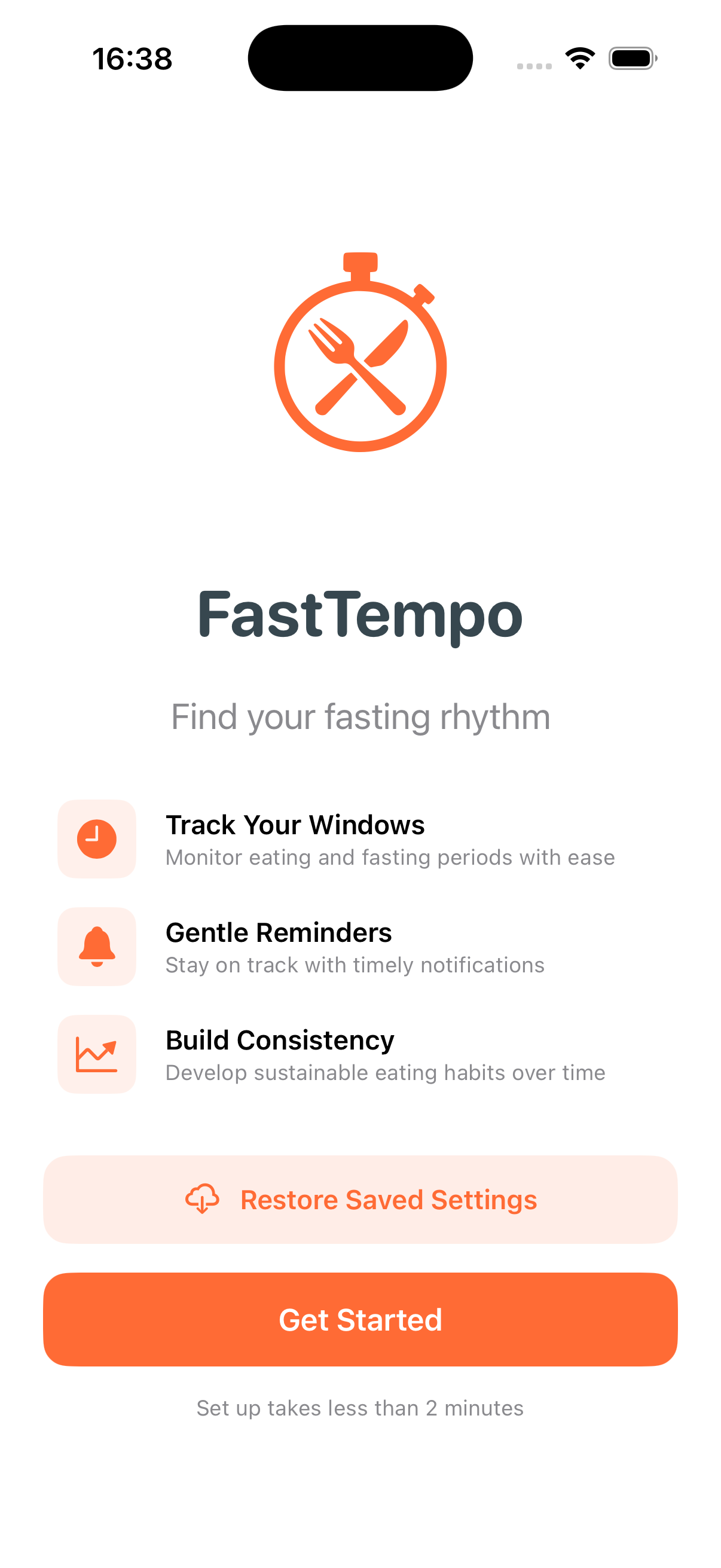
On your iPhone, open FastTempo and tap Get Started. Choose your eating-window duration, then its start and end times. Use times that fit the routine you have chosen, rather than treating the example in a screenshot as a recommendation.
The iPhone is also where you review subscription options, notification preferences, and optional iCloud sync. FastTempo requires iOS 26 or later. Apple Watch support requires watchOS 26 or later and a paired iPhone.
Choose whether to start gradually
During onboarding, FastTempo asks whether you would like to ease into your schedule. Choose Yes, gradually to enter your current breakfast time, or choose No, start today to skip the gradual transition.
With a graduated start, the opening time moves later by 30 minutes per day toward the target you selected. The preview shows the expected transition length. Check that preview before continuing.
What the first seven days can look like
For the 08:00-to-12:00 example above, the first week looks like this:
| App day | Example eating-window start |
|---|---|
| 1 | 08:00 |
| 2 | 08:30 |
| 3 | 09:00 |
| 4 | 09:30 |
| 5 | 10:00 |
| 6 | 10:30 |
| 7 | 11:00 |
The example reaches 12:00 on day nine. Your app preview may show a different number of days. These times explain the product’s calculation; they are not medical advice about when you should eat.
Learn the timer while the schedule changes
Each day, open the timer and check whether it says Eating or Fasting. Read the time remaining and the opening or closing time. The circular view shows where your windows fit in the day.
If you use manual controls, switch to Eat when you start eating and Fast when you finish. If you enable automatic scheduling, the app uses your schedule; a manual action overrides today’s timing. The app does not detect meals automatically.
Apple Watch can make the daily check convenient once it is installed. The ten-second wrist check shows what to look for, and the Watch setup guide explains installation and complications.
Review the routine and adjust it
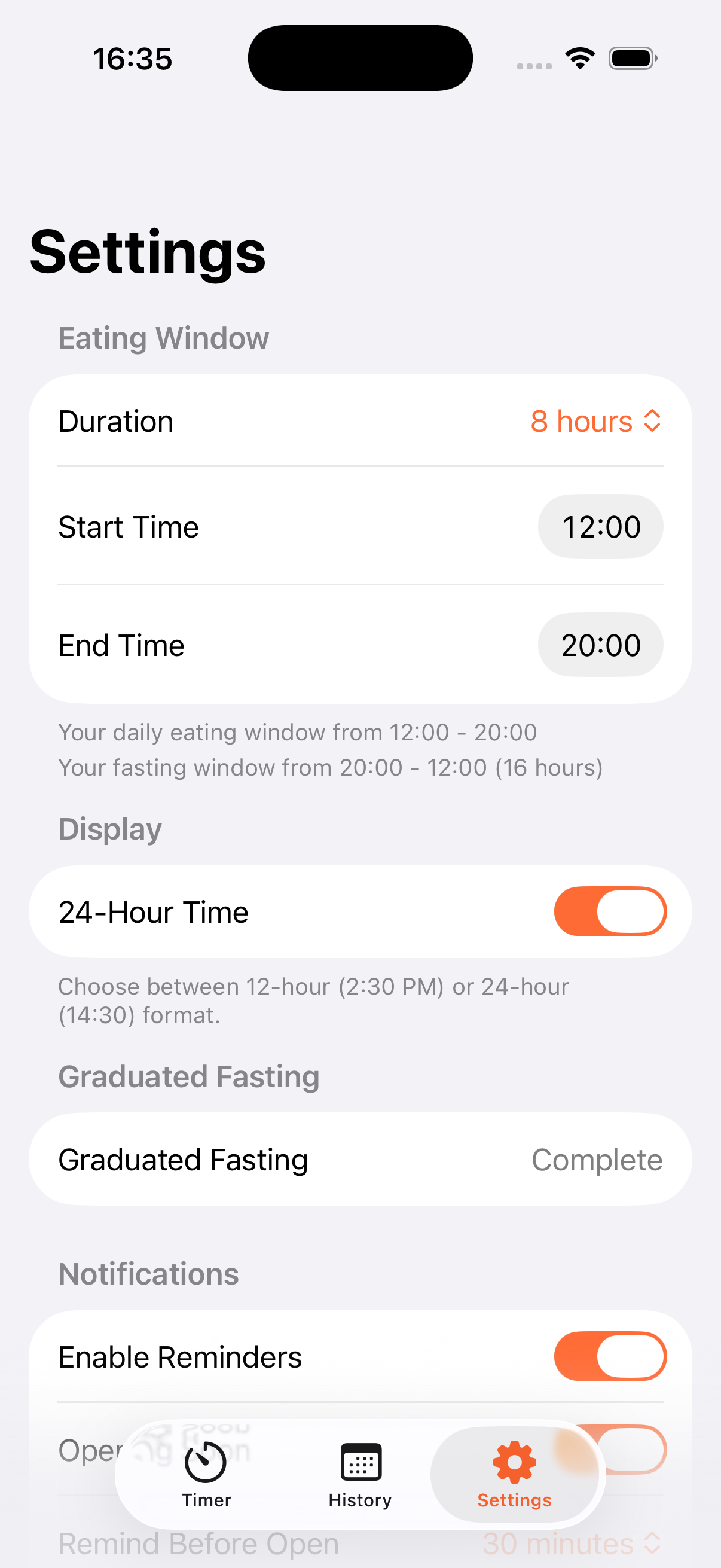
Open Settings to review the eating-window duration, start time, and end time. The screenshot below shows a separate example with a 12:00-to-20:00 window and graduated fasting marked Complete.
If the routine no longer fits, review your settings. If you need a break, Premium includes Pause Fasting, with a chosen end date and an option to resume early. Check what the timer shows after making a change.
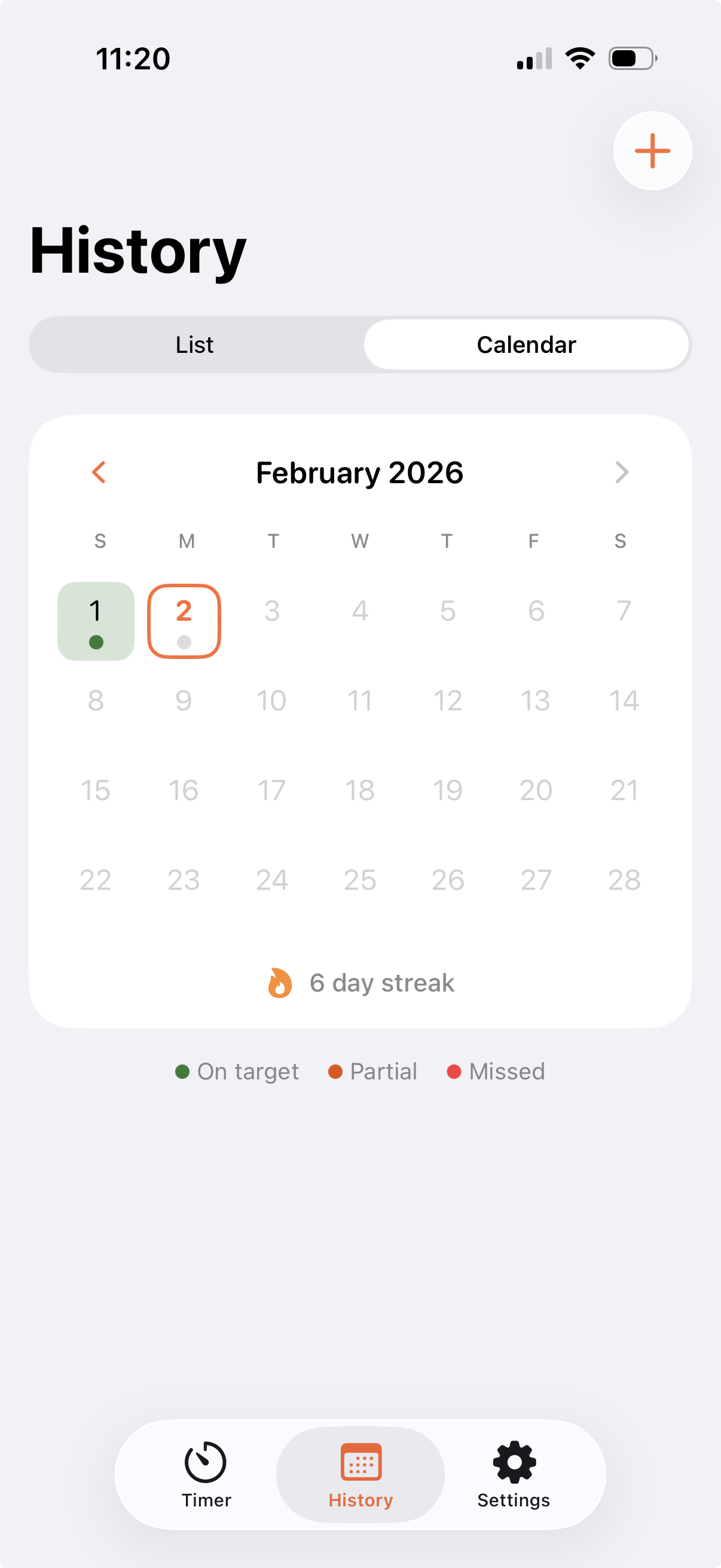
At the end of the first week, review your record in History and decide whether the times you chose still suit your day. A streak is an app record, not a reason to ignore how you feel or continue a routine that is unsuitable for you.
30-second first-week screenshot walkthrough
See the first-week flow
FastTempo handles timer setup and window tracking without asking you to log calories or meals. The simple fasting timer overview explains the product’s focus.
Download FastTempo on the App Store. The annual plan offers a 14-day full-access trial for eligible subscribers, then renews at the annual price shown in the app unless you cancel. Review the price, renewal terms, and trial eligibility on the purchase screen before subscribing.
This article explains software, not a fasting treatment or a promised health result. If you are pregnant, under 18, have a medical condition, take medication, or have a history of disordered eating, ask a qualified clinician whether fasting is appropriate. Stop and seek advice if you feel unwell.