The ten-second fasting timer check on Apple Watch
When does your eating window close? If you already use a fasting timer, that can be the whole question. You do not always need to reach for your phone, open a dashboard, and work it out from the clock.
FastTempo on Apple Watch puts your current state, time remaining, and the window’s finish time together. Here is a quick check you can use after you have set up the Watch app.
Read three things on one screen
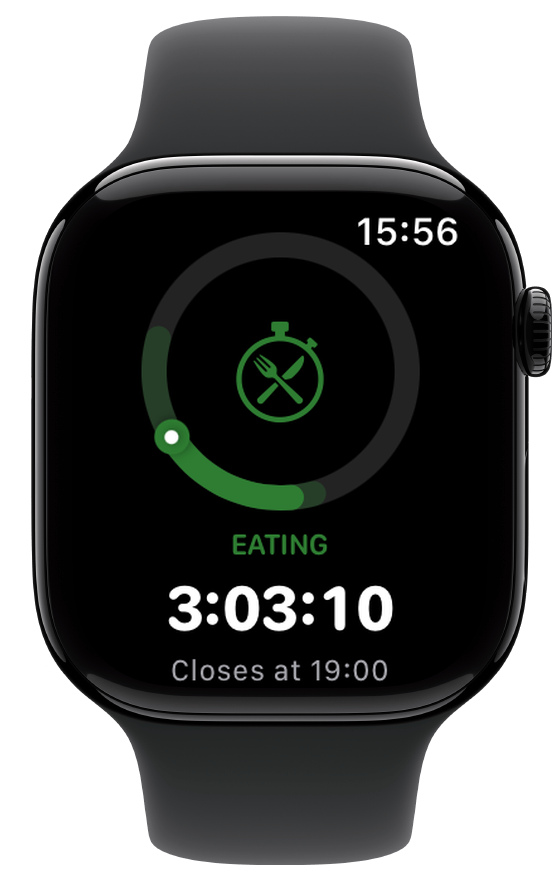
Open FastTempo on your Watch and look for the current state first. Eating means the timer is tracking your eating window. Fasting means it is tracking the time until that window opens.
Next, read the countdown. Then check the time underneath it. In the eating example below, the Watch shows 3:03:10 remaining and Closes at 19:00. You can read the closing time directly rather than add the countdown to the current time yourself.
The “ten-second check” is a simple routine to try, not a measured speed claim. Take the time you need to read your screen, including with accessibility settings.
Check the state before changing it
Looking at the timer does not start or end a fast. When you start eating, use the Eat/Fast control below the timer to switch to Eat. When you finish eating, switch to Fast. The control is a button, even though its shape resembles a slider.
Watch controls require FastTempo Premium access, including an eligible active trial. If automatic scheduling is on, a manual tap overrides today’s timing. Apple Watch does not detect that you have eaten.
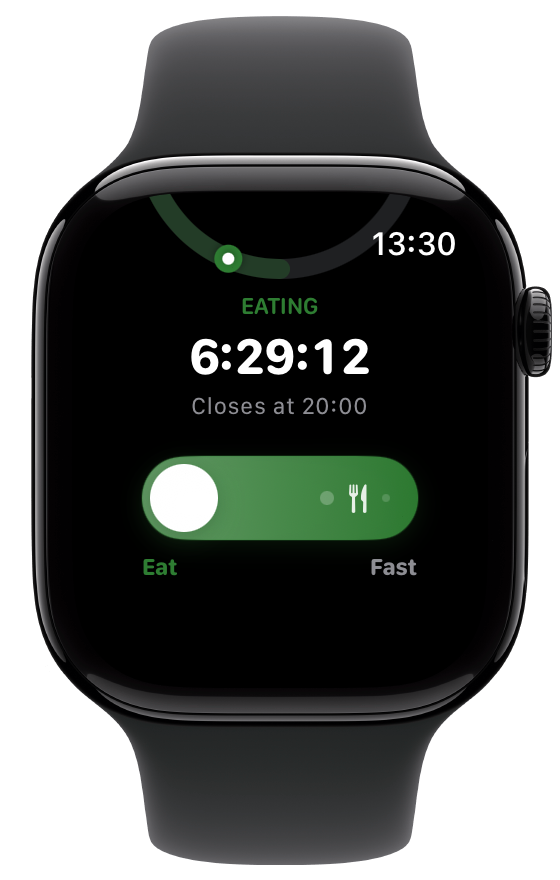
You do not need to tap just because you looked at the screen. The useful part of a quick check is knowing which window you are in and when it ends.
Put the status on your watch face
If you check often, a compatible FastTempo complication can keep status on your watch face. The face and complication position determine which options you can use. For installation steps and complication choices, follow the Apple Watch setup guide.
A complication is a way to see status. Open the app when you need the full timer or controls.
Keep your phone and Watch in agreement
Set up your schedule on the paired iPhone first. Watch and phone updates depend on their connection. After a disconnection, open both apps and confirm that the eating or fasting state agrees. This article does not promise independent offline syncing.
If you pause fasting, check the pause settings on your iPhone before trying to switch states on your Watch. Pause Fasting explains how to take a break and resume your saved schedule.
Try the daily check
Start with one ordinary moment, such as finishing a meal or getting ready to go out. Open the Watch app, read the current state, and check the window’s closing or opening time. Change the state only when your eating window actually changes.
See FastTempo for Apple Watch for the product overview. FastTempo requires iOS 26 or later and watchOS 26 or later, with a paired iPhone for setup.
Download FastTempo on the App Store. The annual plan offers a 14-day full-access trial for eligible subscribers, then renews at the annual price shown in the app unless you cancel. Review the price, renewal terms, and trial eligibility on the purchase screen before subscribing.
This is app guidance for adults who have already chosen fasting. It is not medical advice or a recommendation to fast. If fasting makes you feel unwell, stop and seek qualified advice.